In this step-by-step tutorial you'll learn how to create impressive 3D text in Adobe After Effects — no third-party plugins required. This is an easy to follow guide suitable for beginners and intermediate users.
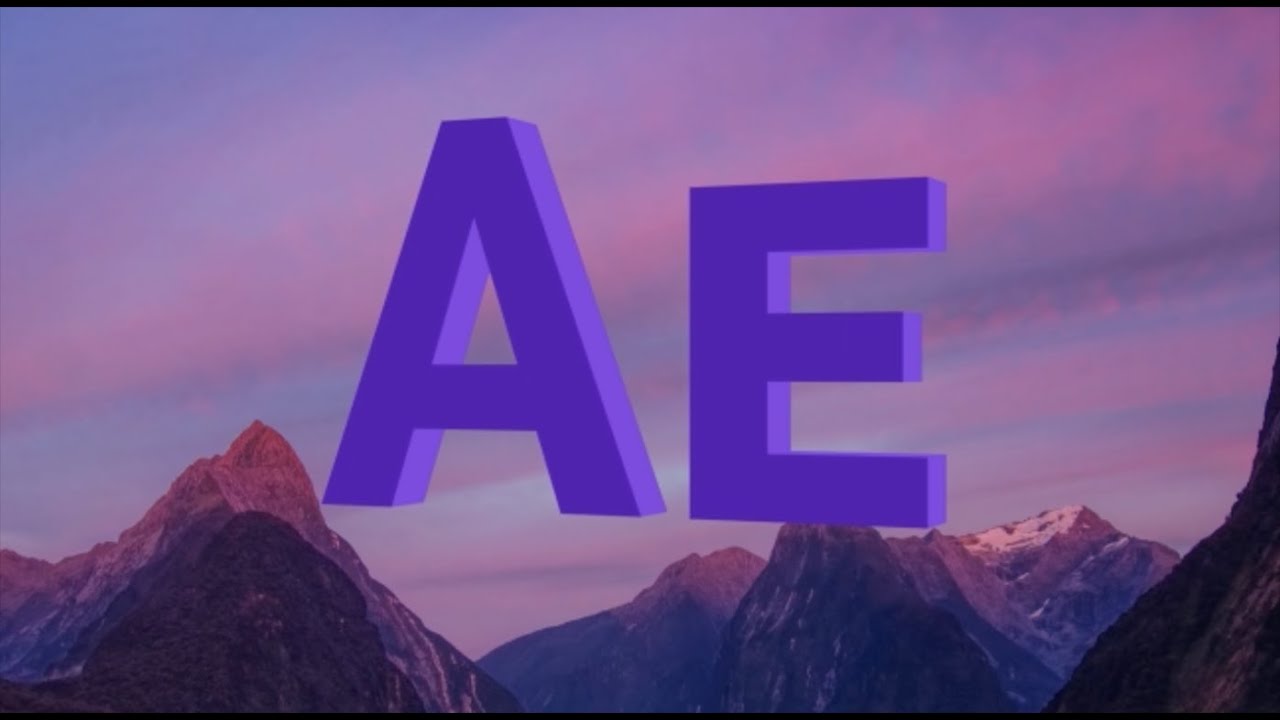
Step-by-Step
- Create a new composition. 1920×1080, 25fps, duration 5 seconds. Set the background colour to a dark neutral.
- Add a text layer. Use the Type tool to add your text. Choose a bold, clean typeface — thick strokes render better in 3D.
- Enable 3D. Click the 3D layer switch (the cube icon) on the text layer in the timeline. The layer now responds to 3D cameras and lights.
- Add a camera. Layer → New → Camera. Use a 35mm preset. This gives you a natural perspective for the 3D scene.
- Add lights. Add a Point Light and an Ambient Light. Position the Point Light above and to the side of the text. Reduce the Ambient intensity to around 20% for contrast.
- Enable per-character 3D. In the text layer's Animate menu, enable Enable Per-character 3D. This unlocks full 3D depth for each letter individually.
- Animate the camera. Keyframe the camera Position — pull back from close to the text over the first 2 seconds. Add gentle easing with the Easy Ease keyboard shortcut (F9).
- Render. Use the Media Encoder or built-in Render Queue. Use H.264 for web delivery, or PNG sequence for broadcast.
Tips for Better Results
Use a dark background to let the 3D depth show through shadows. Apply a slight Bevel and Emboss layer style to the text before enabling 3D — it adds realistic edge highlights. Keep your camera move subtle; slow, deliberate camera work looks far more professional than fast spinning.